Welcome friends,👋
Thank you for being a member of ninZa.co!
This guide will walk you through activating your purchased indicators using our License Manager system. Whether this is your first installation or you’re activating on a new computer, the process is quick and fully self-managed.
What is License Manager?
In the past, our indicator activation required manual NinjaTrader 8 MachineID handling. But now, with our License Manager, you can:
✅ Activate and manage your indicators by yourself
✅ Easily change computers
✅ Use indicators on multiple devices (within your license terms)
Everything is managed directly from your ninZa.co account.
Step-by-step activation guide (7 simple steps)
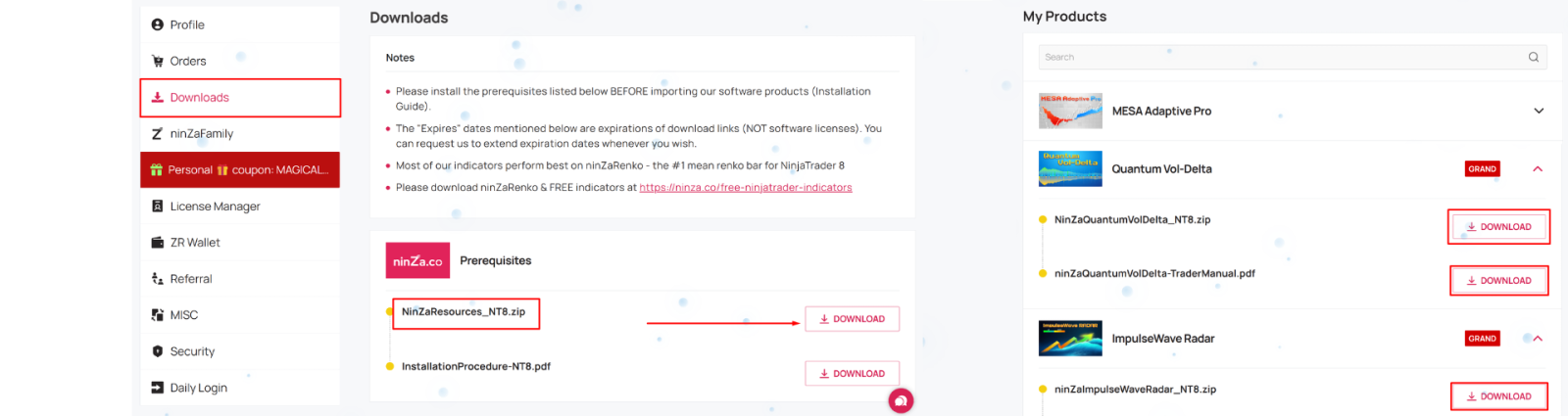
Go to your download zone via this link: https://ninza.co/customer/downloads
And download ninZaResources (important), and your purchased indicators.
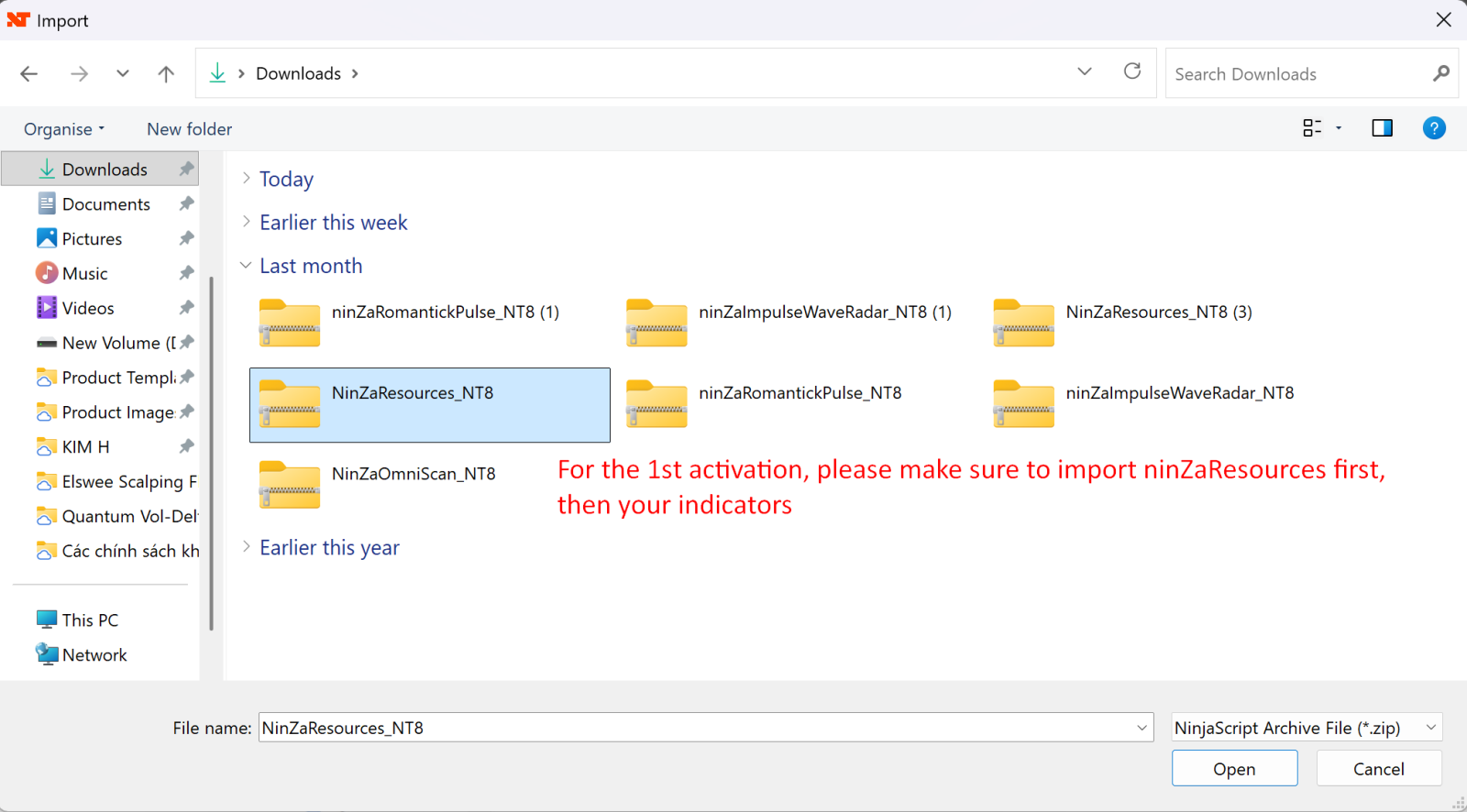
Open NinjaTrader 8 → Import ninZaResources first, then import your indicators.
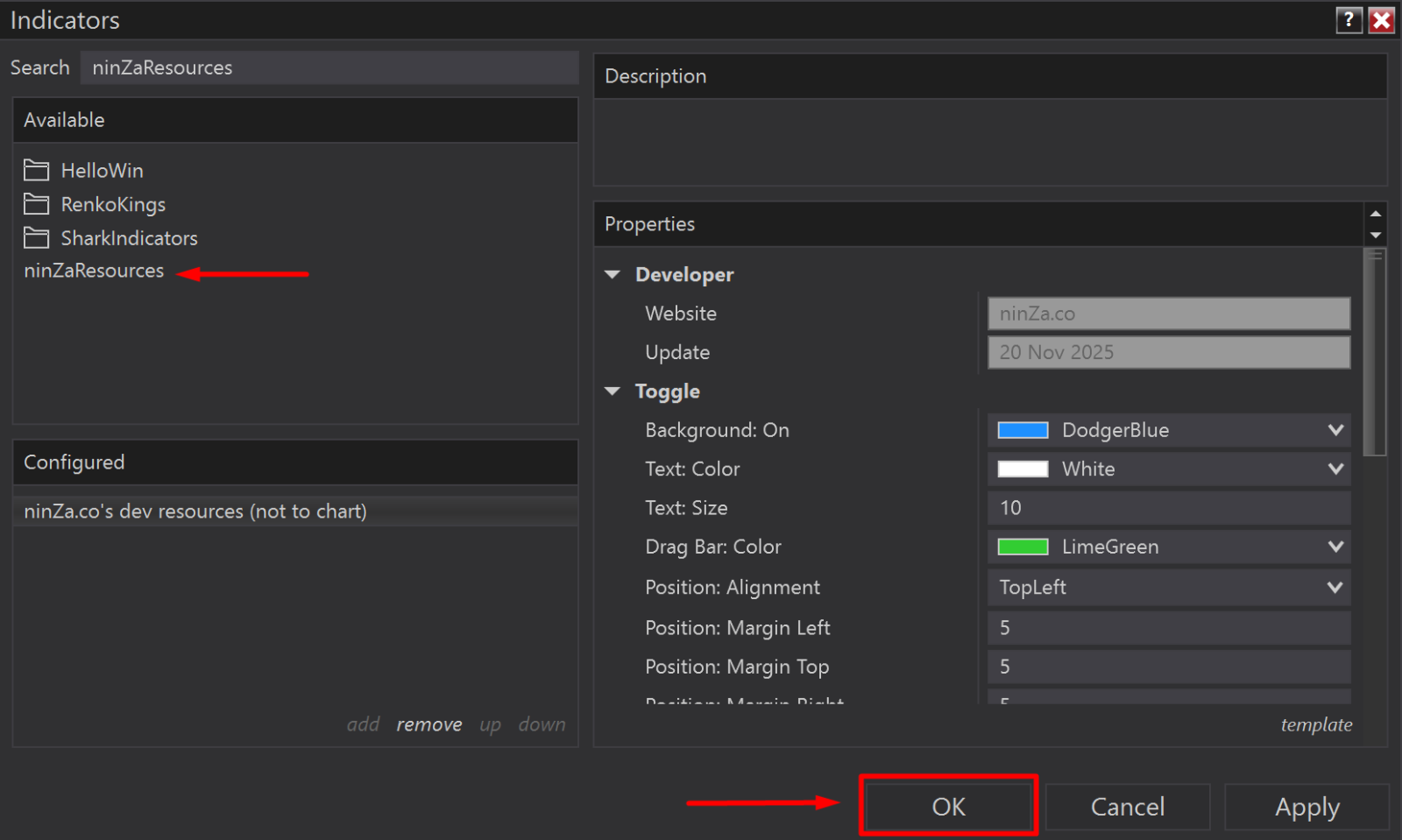
Open any chart → Add ninZaResources from the Indicators list → Click OK.
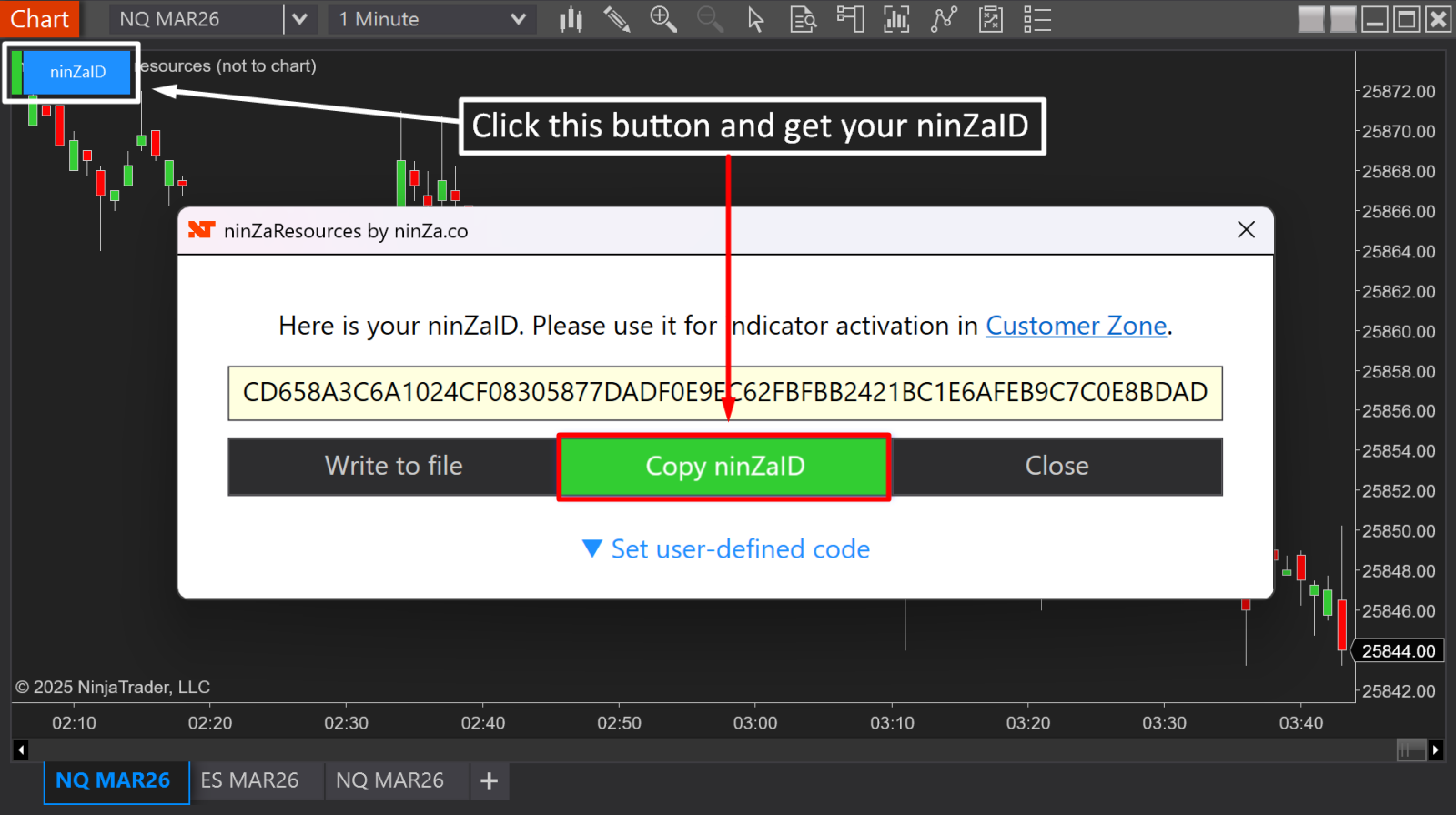
On the chart, click the ninZaID button at the top-left → Copy your ninZaID.
Visit your License Manager at: https://ninza.co/customer/license-manager
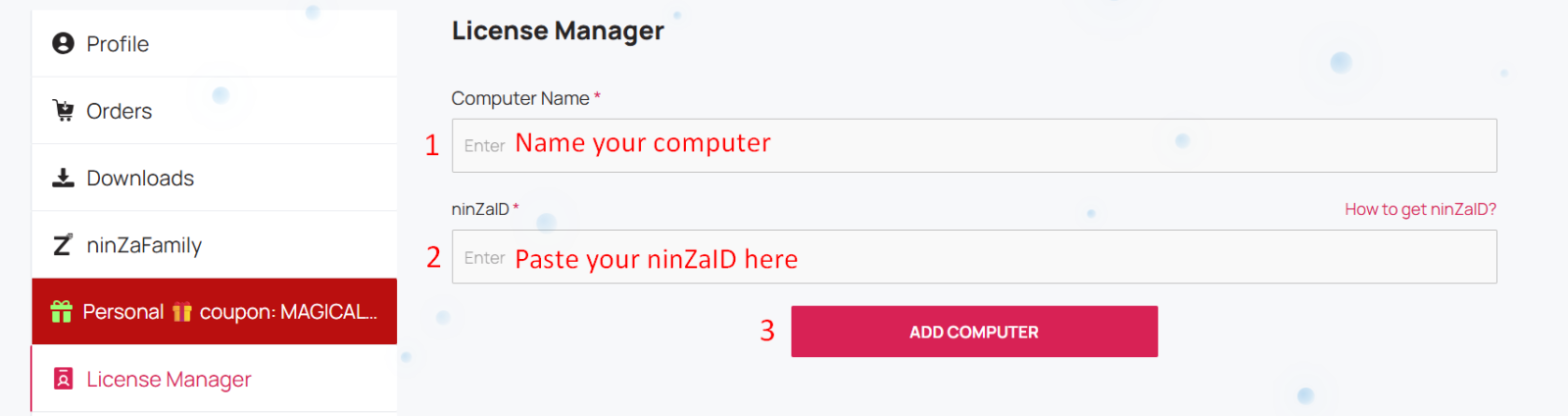
Enter your device name → Paste your ninZaID → Click ''Add this computer''.
Click the dropdown at the end of your device to see your indicators → Click Active → Done.
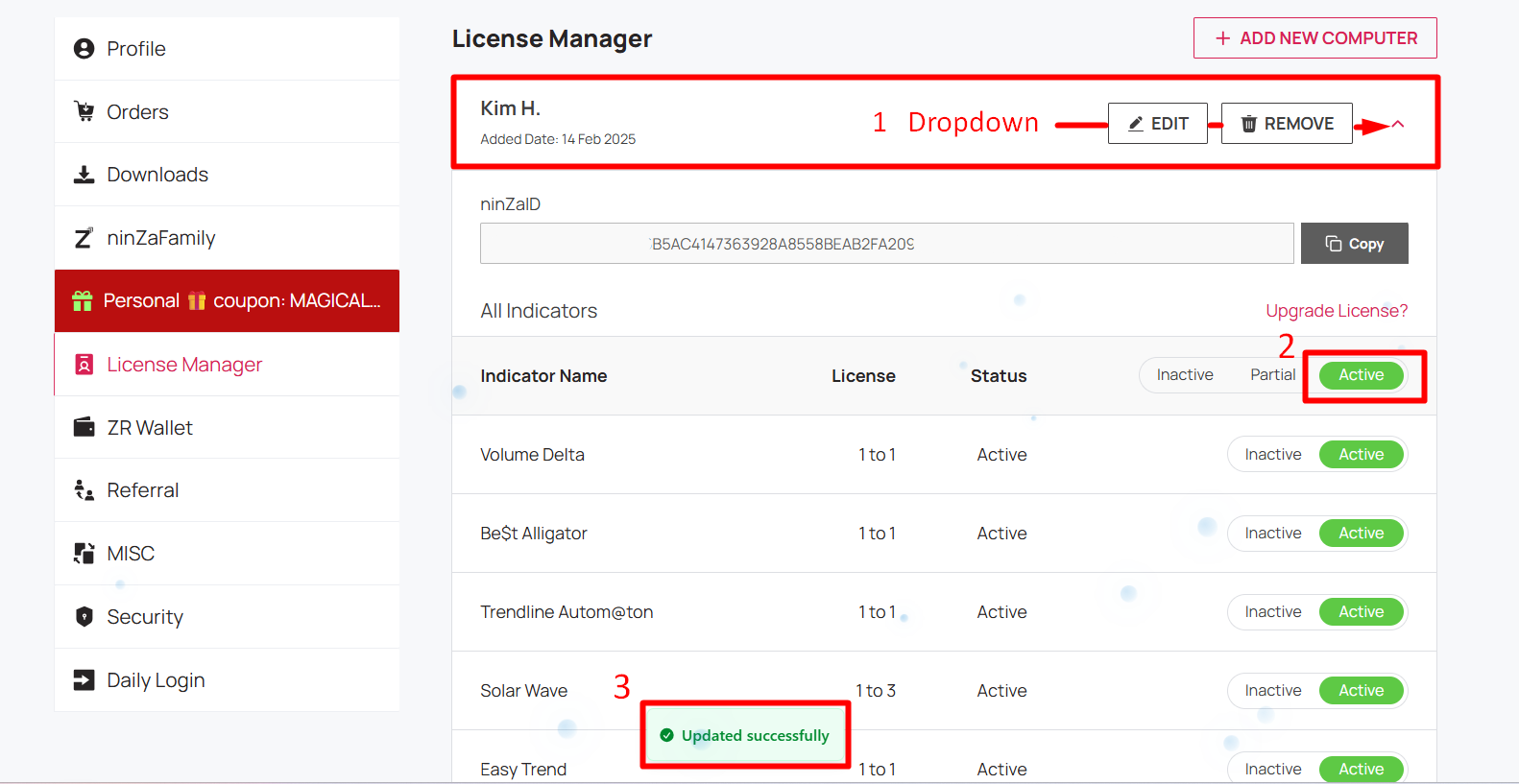
Your indicators are now activated and ready to use.🎉
If you ever change computers, simply repeat these steps.
Need Help?
We’re always here and happy to assist you.
📩 Contact support: support@ninza.co